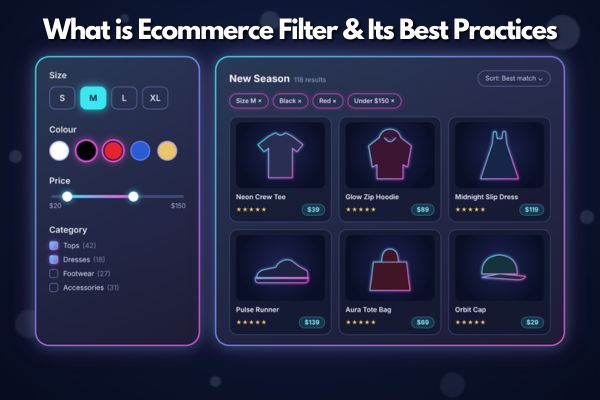
Picture this. A shopper lands on your category page. They want a blue jacket, size medium, under $100.
If your filters work well, they find it in seconds. If they don’t, that shopper leaves. They probably don’t come back.
This isn’t a small design detail. It’s one of the biggest, most overlooked levers for revenue on your whole site.
Source: Baymard Institute
That’s actually good news for you. It means getting ecommerce filters right is one of the easiest ways to pull ahead.
This guide walks through what ecommerce filters are, why they matter, and exactly how to design them the right way. We’ll also cover two things almost nobody talks about: filter accessibility, and where AI is taking product filtering next.
Key Takeaways
-
1Filters Are a Revenue Lever, Not a Design Detail: Only 16% of major ecommerce sites offer a genuinely good filtering experience. Getting yours right is one of the easiest ways to pull ahead of competitors.
-
2Match Filters to Each Category: Start with price, brand, rating, size and colour, then add filters shoppers in that category actually need. A laptop page needs RAM and processor filters, not just price.
-
3Clean Product Data Comes First: A filter is only as good as the data behind it. Missing attributes and mixed terms like "navy" and "dark blue" hide products from shoppers who would have bought them.
-
4Some Features Are Must-Haves: Multi-select, result counts next to each option and visible active filters are what shoppers expect. Leaving them out causes real, measurable drop-off.
-
5Design Mobile Filters Separately: Use a full-screen drawer, a sticky filter button and a clear "Show X Results" button. A squeezed-down desktop sidebar doesn't work on a phone.
-
6Accessible Filters Reach More Shoppers: Every filter should work with a keyboard, have clear screen reader labels and give colour swatches a text name. It's easier to build this in from the start.
-
7Keep Testing and Improving: Track filter usage, zero-result searches and drop-off, and review them every quarter. Filters need ongoing care as your catalogue and customers change.
What Are Ecommerce Filters?
An ecommerce filter is a tool that lets a shopper narrow down a big list of products. They pick the criteria that matter to them. The page then shows only products that match.
Think about a shopper looking for shoes. They might filter by size 9, colour black, and price under $150. The result is a much smaller, much more useful list.
Filters are often confused with two other tools: sorting and search. Each one does a different job.
| Feature | What It Does | Example |
|---|---|---|
| Search | Finds products matching a typed query | Typing "running shoes" |
| Filter | Narrows the list by chosen criteria | Showing only size 9, black, under $150 |
| Sort | Reorders the list that's already showing | Ordering by lowest price first |
Most good ecommerce sites use all three together. Search gets shoppers to a starting point. Filters narrow that list down. Sorting helps them prioritise what’s left.
Why Ecommerce Filters Matter
Filters aren’t just a nice extra. They directly affect how much money your store makes.
They reduce cognitive load. Instead of scanning hundreds of products, shoppers make a few choices and get a manageable list. This makes shopping feel easy instead of exhausting.
They shorten the path to purchase. A shopper who filters well moves from your category page to a product page much faster.
They lift conversion rates. Shoppers who use filters are actively narrowing down with an intent to buy. They’re not just browsing.
They increase average order value. When shoppers can easily compare options, they often discover better or higher-value products they’d have otherwise missed.
They reduce bounce rates. Every filter interaction gives a shopper a small sense of progress. That keeps them on the page instead of leaving in frustration.
They matter even more on mobile. Small screens make browsing hard. Filters act as a shortcut straight to relevance.
⚠️ Warning
Baymard Institute research found that sites with poor product-list usability saw abandonment rates as high as 67% to 90% for shoppers trying to find specific products. Sites with well-optimised filters saw abandonment drop as low as 17% to 33%. That's the real size of the gap between doing this well and doing it badly.
Filters also give you something else: data. Every filter click tells you what your customers actually care about. That’s useful for merchandising, not just UX.
Types of Ecommerce Filters & UI Components
Not every filter looks the same. The right format depends on what you’re filtering.
Common UI components include:
- Checkboxes (multi-select). The most common filter type. Lets shoppers tick more than one option, like “Nike” and “Adidas” at once.
- Price range sliders. A dual-handle slider for setting a minimum and maximum price. Works best paired with a text box for exact values.
- Colour swatches. A visual chip instead of a text label. More intuitive than the word “Navy” alone, especially for fashion and home goods.
- Toggle filters. Simple on/off switches for things like “In Stock Only” or “On Sale.”
- Rating filters. Lets shoppers set a minimum star rating, common for electronics and appliances.
- Collapsible groups. Keeps a long filter panel manageable by letting shoppers expand only the sections they care about.
| Filter Type | Used For | Examples |
|---|---|---|
| Universal | Applies across most categories | Price, brand, rating, availability |
| Variant | Product options shoppers already know | Size, colour, width, fit |
| Category-specific | Technical comparison within a category | RAM, screen size, material, dimensions |
| Thematic | Exploratory or gift-based shopping | Wedding guest, back to school, outdoor |
| Merchandising | Business-driven, time-sensitive groups | Sale, new arrival, bestseller |
| Fulfilment | Availability and convenience | In stock, pickup today, fast shipping |
| Visual | Attributes words can't describe well | Colour swatches, shape chips |
Most stores at minimum should offer five essentials: price, brand, average rating, size, and colour. Then layer in category-specific attributes on top.
The Product Data Behind Great Filters
Here’s something most stores overlook. A filter is only as good as the data sitting behind it.
You can build the cleanest filter UI in the world. If the product data underneath is messy, the filter will still fail shoppers.
Five things your product data needs to get right:
- Attribute completeness. Every product that should show up under a filter needs that attribute filled in. If half your shirts are missing a “fit” value, your fit filter becomes unreliable.
- Value normalisation. If your data has “navy,” “dark blue,” and “midnight” as separate values, your colour filter turns into a mess. Pick one consistent term.
- Category specificity. A laptop needs filters for RAM and processor. A jacket needs filters for size and insulation. Generic filters rarely serve a whole catalogue well.
- Customer-language labels. Your internal database might use a term like “upper material.” Your customer searches for “leather.” Use the words your customers actually use.
- Freshness. Filters like “in stock” or “pickup today” are only useful if they stay in sync with your real inventory in real time.
Ecommerce Filter UI Best Practices
Good intentions often fall apart when filters actually get built. Here are the practices that make the biggest difference.
Allow multi-select within a filter group. Shoppers rarely want just one brand or one colour. Use checkboxes, not radio buttons, so they can select “black OR grey” within the same group.
Source: Baymard Institute
Show result counts next to each option. A label like “Blue (34)” tells shoppers what to expect before they click. It builds confidence and stops wasted clicks.
Keep applied filters visible. Shoppers need to see what’s currently selected without hunting for it.
Source: Get Catalog
Use category-specific filters for key attributes. If a customer’s shopping for a laptop, “Price” and “Brand” alone won’t cut it. They need “RAM” and “Processor Speed” too.
Add special-purpose filters when relevant. Filters like “On Sale,” “New Arrivals,” or “Pickup Today” often reflect exactly what a shopper is trying to do.
Persist filter state on back navigation. If a shopper clicks into a product then hits “back,” their filters should still be applied. Losing this state is one of the most frustrating things you can do to a shopper.
Give clear reset options. Offer both a “Clear All” button and a way to reset just one filter group at a time.
Mobile Filter UX: Key Considerations
Mobile shoppers use filters very differently to desktop shoppers, and most sites perform noticeably worse on mobile.
Use a full-screen or bottom-sheet drawer. Trying to squeeze a sidebar onto a small screen just doesn’t work. Give filters their own layer.
Make the trigger button sticky. The “Filter & Sort” button should stay visible as someone scrolls, not disappear off the top of the screen.
Always include a “Show X Results” button. On mobile, apply filters with a deliberate action rather than updating in real time. Real-time updates on a small screen feel jarring and disorienting.
Design for thumbs. Tap targets need to be big enough for a thumb, not a mouse cursor. A minimum of 44×44 points, per Apple’s own accessibility guidelines, is the benchmark worth building to.
Common Filter Design Mistakes to Avoid
Even experienced teams fall into the same traps. Here’s what to watch for.
- Too many filters at once. Twenty-plus filter categories overwhelm shoppers. Prioritise the five to ten attributes that actually matter for that category.
- Hidden active filters. If a shopper can’t easily see what’s currently applied, they lose orientation, especially on mobile where filters sit behind a drawer.
- Zero-result dead ends. Letting shoppers pick a filter combination that returns nothing, with no explanation, is a dead end. Offer a clear recovery path instead.
- Inconsistent naming. Using “Colour” in one place and “Shade” in another erodes trust in the whole system.
- Requiring a page reload. On desktop, real-time filtering is the expected standard. Making shoppers click “Apply” and wait feels slow and dated.
- Forcing single-select. Radio buttons work for mutually exclusive choices. They don’t work for brands, colours, or sizes where shoppers want several options.
Real-World Examples: What Good Filtering Looks Like
Looking at real stores helps make these principles concrete.
B&H Photo runs a best-in-class desktop filtering experience. It offers the typical filters shoppers expect, like brand and price, plus category-specific filters explained through tooltips. Applied filters sit clearly above the product list.
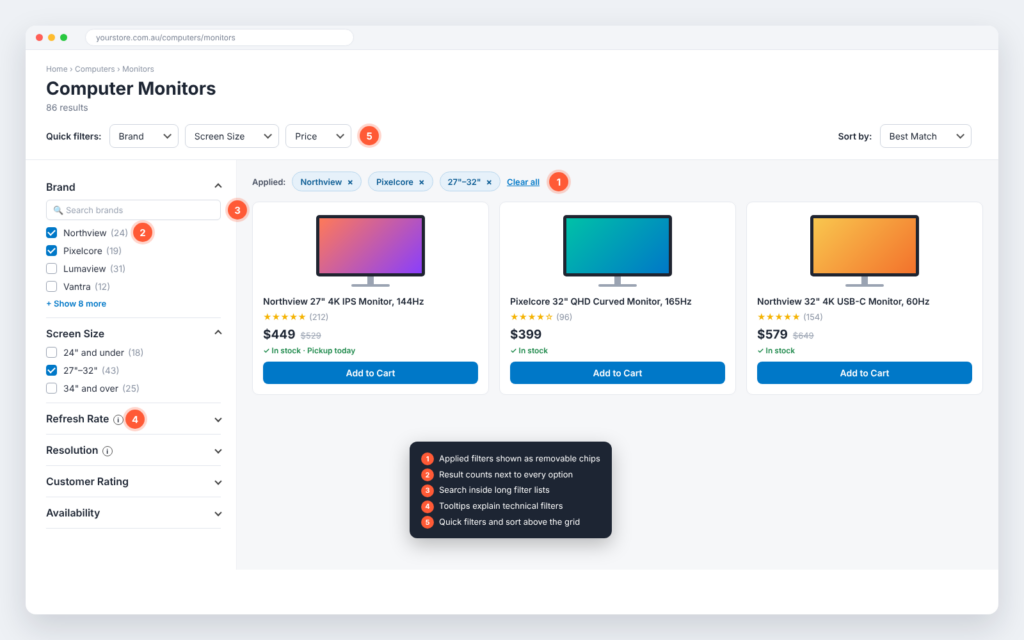
Lowe’s does mobile filtering well by letting shoppers search within long filter lists, like brand, instead of forcing them to scroll through dozens of options.
Macy’s app prioritises the filters shoppers care about most, like delivery method and size, and shows the expected result count right on the “Apply” button.
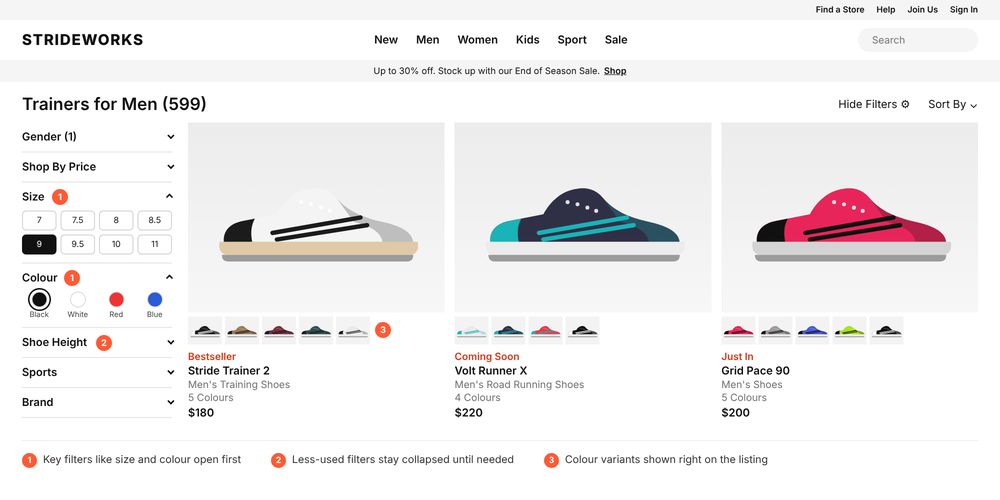
Nike uses progressive disclosure. It shows key filters like size and colour upfront, and tucks less-used options like material behind an expandable menu.
Best Buy makes filters context-aware. Laptops get filtered by processor and RAM. TVs get filtered by screen size and resolution. Nothing generic, nothing irrelevant.
Zappos and Ashley Furniture both nail the small details: clear active-filter chips that can be removed with one click, and result counts shown next to every option before you click it.
Nike uses progressive disclosure. It shows key filters like size and colour upfront, and tucks less-used options like material behind an expandable menu.
Best Buy makes filters context-aware. Laptops get filtered by processor and RAM. TVs get filtered by screen size and resolution. Nothing generic, nothing irrelevant.
Zappos and Ashley Furniture both nail the small details: clear active-filter chips that can be removed with one click, and result counts shown next to every option before you click it.
How to Test, Measure, and Improve Your Filters
Filter design isn’t a one-time build. Treat it as an ongoing optimisation project.
Run task-based usability tests. Ask real people to find a specific product using only your filters. Watch for hesitation, wrong turns, and moments of confusion.
Watch these behaviours specifically:
- Where do people hesitate before selecting a filter?
- Do they understand what a filter will do before they click it?
- Can they recover after over-filtering into a dead end?
- Can they explain what’s currently applied?
- Do they give up trying to find a buried option in a long list?
Track behavioural metrics. Keep an eye on filter usage rate, which filters get used most and least, drop-off rate after filtering, and how often filter combinations return zero results.
Run A/B tests. Try testing filter panel position, default open versus collapsed groups, real-time filtering versus an apply button, and different label wording.
Mini Case Study: The ROI of Smart Filters
Numbers make this real. Here’s one worth knowing.
Fully, a direct-to-consumer furniture brand known for its standing desks, hit a supply problem during a demand spike. Popular products had long lead times, and the team needed shoppers to discover other in-stock options instead of leaving.
An audit found that customers who weren’t familiar with the brand struggled to understand the difference between product categories. Heatmaps showed people already engaging heavily with filters, just not getting good results from them.
The fix was a redesigned filtering system: simplified categories, plus new filters for materials and parts.
Source: The Good
Building and Maintaining Filters Over Time
Filters aren’t a “launch it and forget it” feature. Your catalogue changes. Customer language shifts. New product attributes appear.
Make this a habit, not a project:
- Review analytics regularly. Track which filters get used, which get ignored, and where drop-off happens.
- Run ongoing A/B tests. Keep experimenting with placement, wording, and default states.
- Audit filters on a schedule. Remove outdated or irrelevant options as your inventory and industry shift.
- Ask customers directly. Surveys and feedback forms often surface filter gaps that analytics alone won’t show you.
How Ecommerce Filters Affect SEO
Filters don’t just shape the shopping experience. They also change how search engines see your site.
Every time a shopper picks a filter, your store may create a new URL, like /jackets?colour=black&size=m. Add a few filters together, and one category can quickly turn into thousands of near-identical pages.
If search engines crawl and index all of them, a few problems show up:
- Wasted crawl budget. Google spends time on endless filter pages instead of your important products and categories.
- Duplicate content. Many filtered pages show almost the same products, so they compete with each other in search.
- Diluted ranking signals. Links and authority get spread across lots of weak pages instead of one strong one.
The good news is that a few simple rules prevent most of this:
- Point low-value filter combinations back to the main category page with a canonical tag.
- Keep thin filter pages out of the index with a noindex tag, or block endless combinations from being crawled.
- Let a small number of high-demand filters rank. If people actually search for something like “black leather boots”, that filtered page can work as a proper landing page, with its own title and intro text.
Filter Accessibility
If your filters only work with a mouse, you’re excluding a meaningful group of shoppers, and in several markets, you may be creating a legal risk too.
Here’s what accessible filtering actually looks like:
- Keyboard operability. Every filter, checkbox, slider, and “Apply” button needs to work using only a keyboard. A shopper should be able to tab through options and select them without touching a mouse.
- Screen reader support. Filter groups need proper ARIA labels so screen readers announce what each control does. A colour swatch needs a text label behind it, not just a visual chip.
- Announcing changes. When a shopper applies a filter and the result count updates, a screen reader should announce that change. Silent updates leave assistive-technology users unsure whether anything happened.
- Visible focus states. Anyone navigating by keyboard needs a clear visual indicator of which filter option is currently focused.
⚠️ Warning
Colour swatches without a text label or tooltip fail basic accessibility standards. If a shopper can't tell "navy" from "black" without seeing the swatch, you're locking out anyone using a screen reader.
Building this in from the start is far easier than retrofitting it later. Treat accessibility as part of your filter design checklist, not a separate compliance task bolted on afterward.
AI-Powered and Conversational Filtering
Filters are starting to change shape. The checkbox-and-sidebar model isn’t going away soon, but a new layer is emerging alongside it.
Natural-language filtering lets a shopper type or speak a request like “waterproof trail runners under $150” and have that parsed directly into filter selections. No clicking through five separate menus required.
This only works when the underlying product data is genuinely clean and complete, which ties directly back to the data quality principles covered earlier in this guide. AI can’t filter accurately on messy, inconsistent attributes any better than a human can.
A few ways this is showing up already:
- AI-assisted filter suggestions. Some stores are starting to recommend filter combinations based on a shopper’s browsing history or common search patterns.
- Conversational refinement. Instead of clicking “remove,” a shopper can simply say “actually, show me something cheaper” and the filter set updates automatically.
- Smarter zero-result recovery. Rather than a dead-end page, AI can suggest the nearest matching alternative automatically, instead of leaving the shopper to work it out themselves.
This is still an early trend, not a settled standard. But it’s worth watching closely, because it changes what “good filter UX” will mean over the next few years.
FAQs
What is an ecommerce filter?
An ecommerce filter lets shoppers narrow a long list of products by the things they care about, such as size, colour, price or brand. The page then shows only the products that match, so shoppers find what they want faster.
What filters should every online store have?
Most stores should start with five essentials: price, brand, average rating, size and colour. Then add filters that suit each category, like RAM for laptops or material for furniture.
How many filters should a category page have?
Focus on the five to ten filters that matter most for that category. More than 20 filter groups can overwhelm shoppers and make the page harder to use, especially on mobile.
Should filters update instantly or use an "Apply" button?
On desktop, filters should update the results instantly. On mobile, a “Show X Results” button works better, because instant updates on a small screen can feel jumpy and confusing.
Why are my filters not showing the right products?
It’s usually a product data problem, not a design one. Missing attributes, mixed terms like “navy” and “dark blue”, or out-of-date stock levels all stop filters from working properly.
How do I make my ecommerce filters accessible?
Make sure every filter works with a keyboard alone, add clear labels for screen readers, and give colour swatches a text name. Screen readers should also announce when the result count changes.
How do I know if my filters are working?
Track how often filters are used, which ones get ignored, how many filter combinations return zero results, and whether shoppers leave after filtering. Simple usability tests and A/B tests will show you what to fix first.
Conclusion
Ecommerce filters aren’t just a feature tucked into the sidebar. They decide whether a shopper finds the right product in seconds or gives up and leaves.
The good news is that most stores still get filters wrong. That gives you a real chance to stand out.
Start with the basics. Clean up your product data, offer the right filters for each category, and make sure multi-select, result counts and active filters all work properly. Then give mobile shoppers a filter experience built for their screen.
From there, keep improving. Watch how shoppers use your filters, test small changes, and review your setup every few months. Build in accessibility now, and keep an eye on AI-powered filtering as it grows.
Get these right, and your filters stop being a source of frustration. They become one of the quiet reasons your store keeps converting better than the rest.
Are Your Filters Helping Shoppers or Driving Them Away?
Messy product data, missing filters and clunky mobile drawers quietly cost you sales. We'll review your filter setup, from UX to the data behind it, and show you exactly what to fix first.
👉 Get a Free Filter Review